This screen contains details for a particular session. From here, you can edit notes or delete individual items, filter the Package IDs, and download all information in CSV format.
This page is made up of two sections: Session Info and Session Items.
Session Info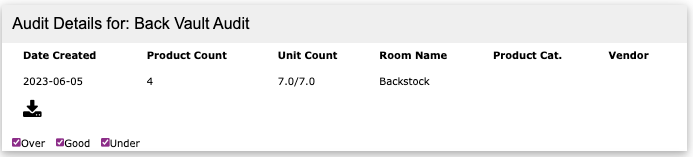
At the top of the page is the Session Info. This will display the audit details: audit name, date, product count, unit count, and filters set on the device.
Action and Filter Buttons
In the above picture, the action buttons are (from top left to right):
- Download - compiles all session data into a CSV file (this process may take a few seconds) and then presents the file for download
- Over Filter - hides all items that were counted with an extra quantity
- Good Filter - hide all items that were counted with the correct quantity
- Under Filter - hides all items that were counted with missing items
- Extra Filter - hides items categorized as extra
Session Items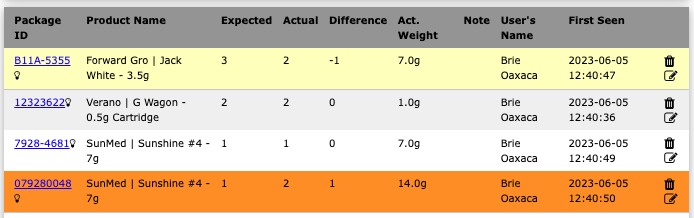
This is a list of all items in this audit session. Item color code will indicate items with discrepancies.
- Yellow - Items with extra quantities
- Orange - Items with missing quantities
- Grey - times counted without discrepancies
Any user-declared colors set on items during the Audit on the device will follow through and appear on the session detail view.
Column Description
The list can be sorted by any column by clicking the column title
- Package ID -the POS product ID that was scanned
- Product Name - the time name as set in the POS system
- Expected - the number of items expected based on the room, category, vendor, and strain filters
- Actual - the quantity of each item counted during the audit
- Difference - the discrepancy quantity between the expected count and the actual count
- Act. Weight - the weight-based converted actual count (calculated based on POS unit weight)
- Note - free text note field captured on the device during the audit
- User's Name - The name of the user who was logged into the device when that tag was scanned
- Even if a user account is deleted, their name will still be associated with the items they handled
- First Seen - date and time stamp (GMT) when the item was first barcode or RF scanned during audit
Comments
0 comments
Please sign in to leave a comment.