Pre-Destroy checklist
Please ensure the following articles have all been read and followed:
Starting the Destruction
The destruction starts by tapping the Destroy button on the main menu. Make sure that the correct license key is selected (if applicable). The license key will affect which reasons and methods are available.
Setting the destroy data
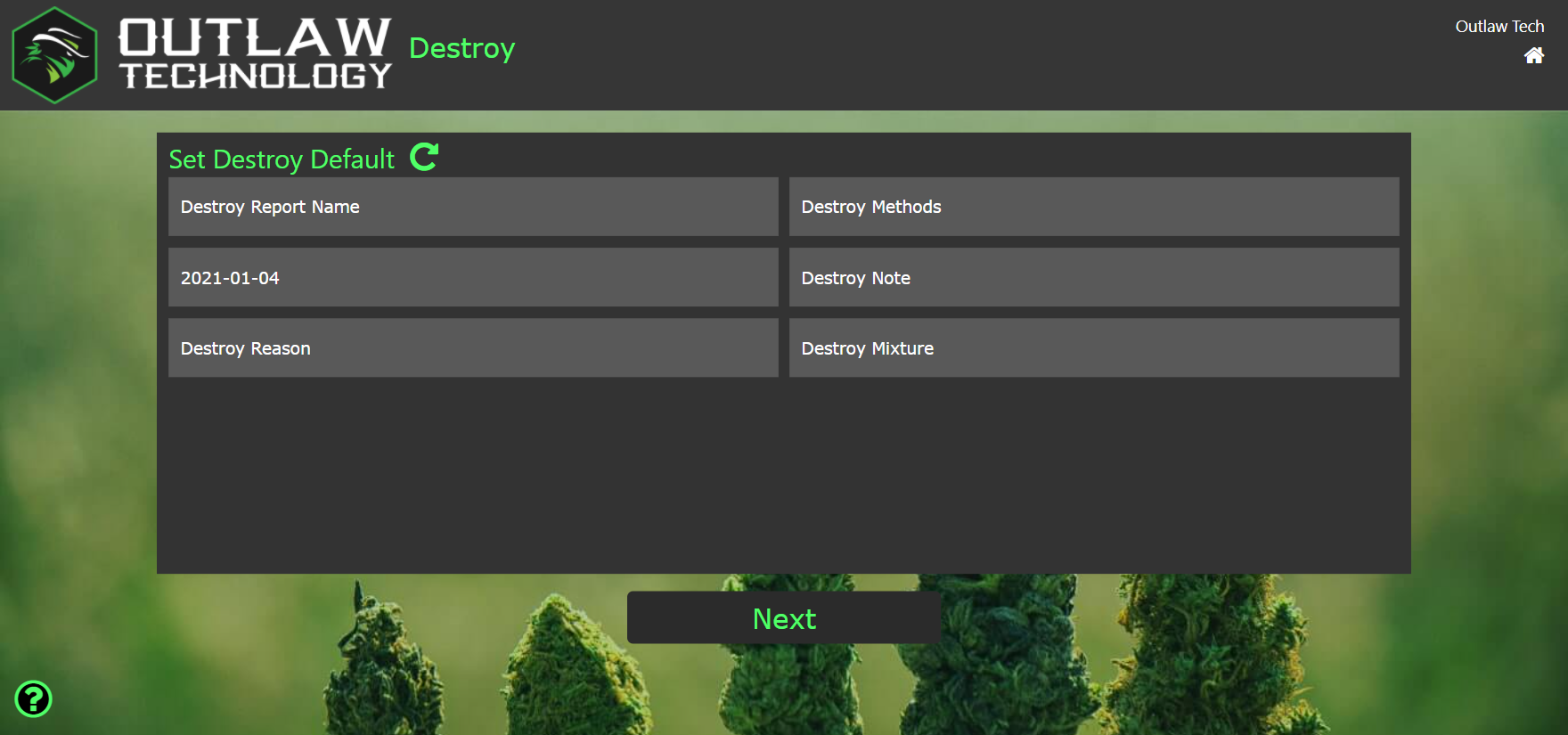
The above screen lets you set the destruction data. After you move on from this page you cannot return to it. You can, however, change these values from the Outlink Console. If an alteration needs to occur (e.g., finding a typo in the Destroy Note) this can be done from the Outlink Console, not this page.
- Destroy Report Name - Tapping this box opens an onscreen keyboard allowing a report name to be entered. This value is only used within the Outlaw system to keep reports organized - it does not get uploaded to Metrc.
- Destroy Date - This value will default to today's date, but can be changed if needed. Just make sure to keep the yyyy-mm-dd format.
- Destroy Reason - Tapping this box will display a popup list of valid Reasons for destruction as determined by your state compliance commissioners. This can be changed from the Outlink Console later if needed.
- Destroy Method - Tapping this box will display a popup list of valid Methods of destruction as determined by your state compliance commissioners. This can be changed from the Outlink Console later if needed.
- Destroy Note - Tapping this box opens an onscreen keyboard allowing a note to be added. This can be changed from the Outlink Console later if needed.
- Destroy Mixture - Tapping this box opens an onscreen keyboard allowing what the destroyed material was mixed to be specified (i.e. soil). This can be changed from the Outlink Console later if needed.
Tap the Next button to move on when all values have been set.
Destroy Plants
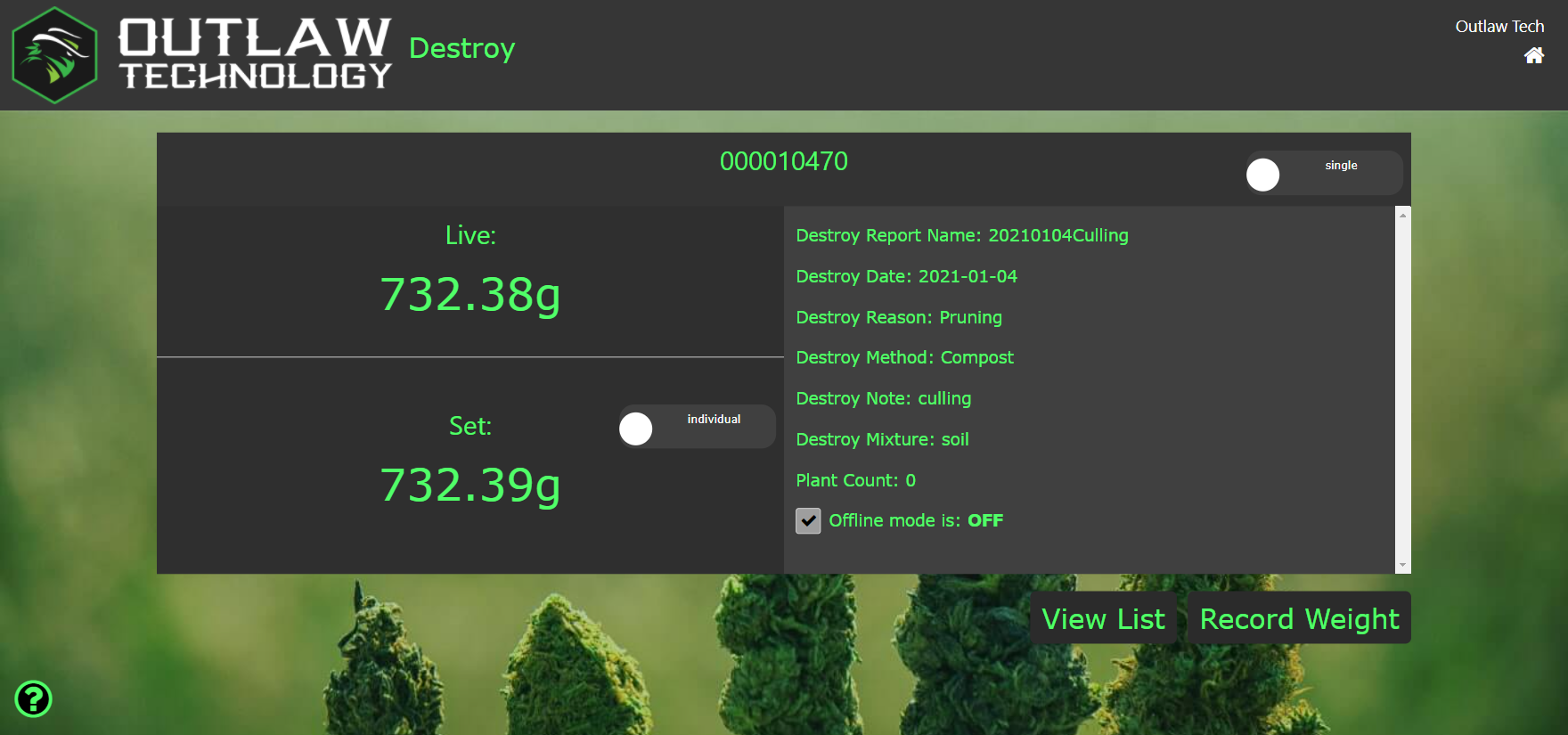
The destroy weight capture screen is very similar to the harvest weight capture screen. Please refer to the Harvesting Plants article for details on how to capture Plant Id and Weight.
Comments
0 comments
Please sign in to leave a comment.