The OG Harvest System utilizes two peripheral devices:
- One is your existing scale, which is connected with one of the included cables.
- The other is the tag scanner. This is either a barcode or RFID scanner tool, depending on your harvest process.
Connecting the devices
Both of these peripherals connect to the touchscreen with a standard USB connection.
Scanner devices - Note that both the barcode and RFiD scanners are listed below, but in most cases you will only be using one or the other
|
RFiD Scanner ~ 5"x2.5" |
Barcode Scanner ~ 3"x1.5 " |
|
|
|
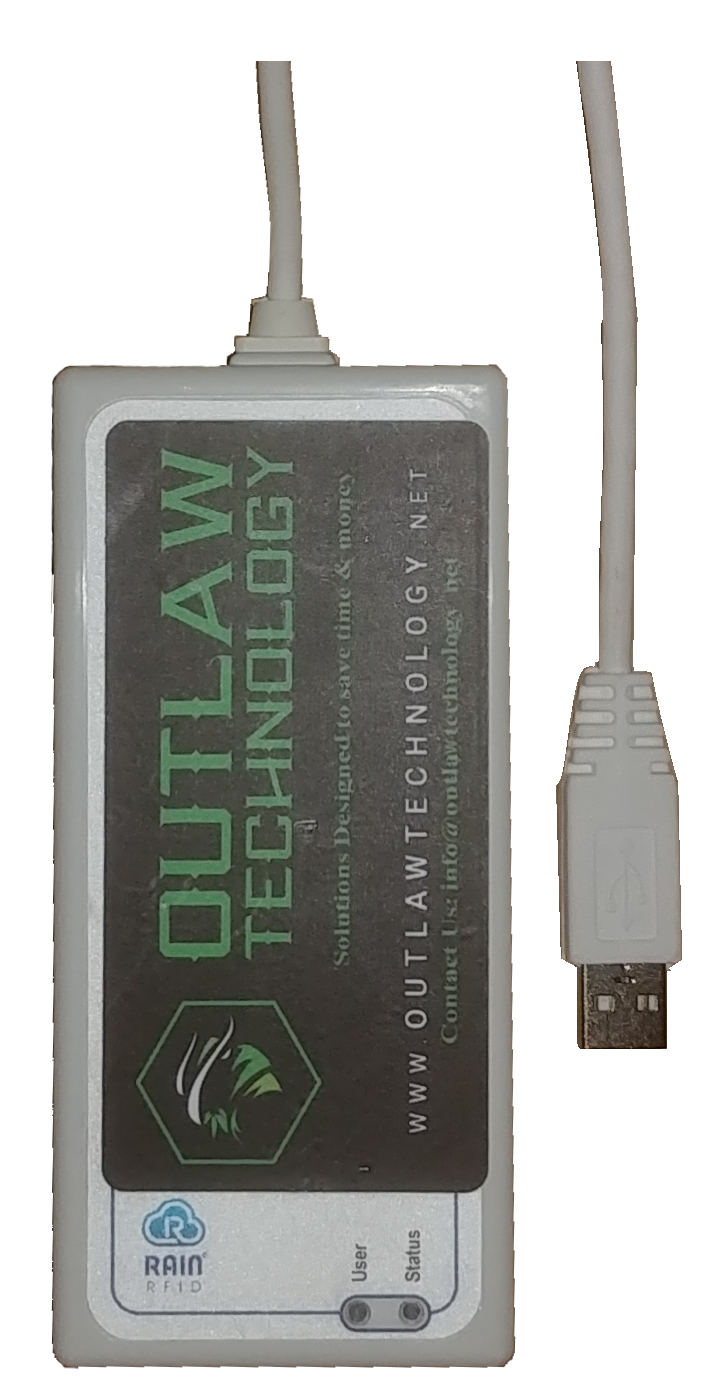
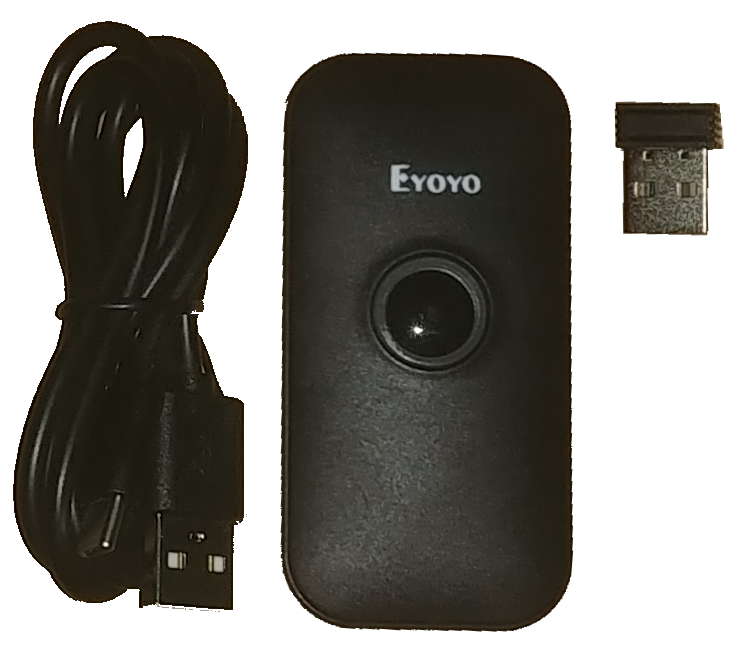
Images not to scale
- The RFiD scanner is a wired device. Simply plug the USB connector into one of the USB ports and it is ready to use.
- The Barcode scanner is primarily a wireless device. It includes a very small USB 'dongle' that plugs into a USB port on the touchscreen. The barcode scanner turns on and automatically pairs with the dongle when the center button is pressed. The device is battery powered and therefore must be charged. It comes with a USB charging cable and can be charged over any USB port (including cellphone chargers).
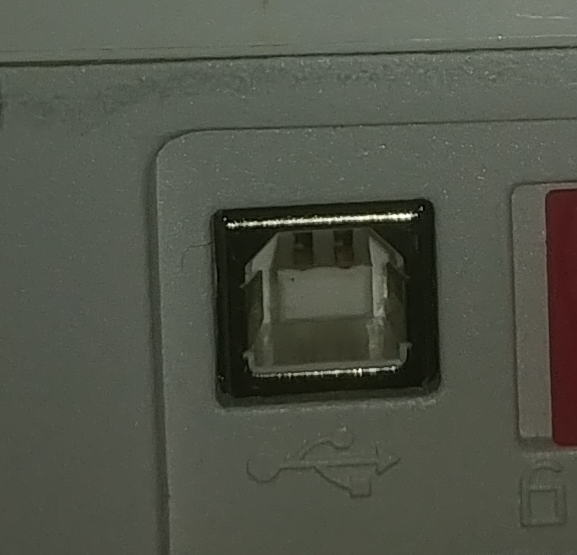
Scale device - The details of this setup will change depending on your particular scale model
 |
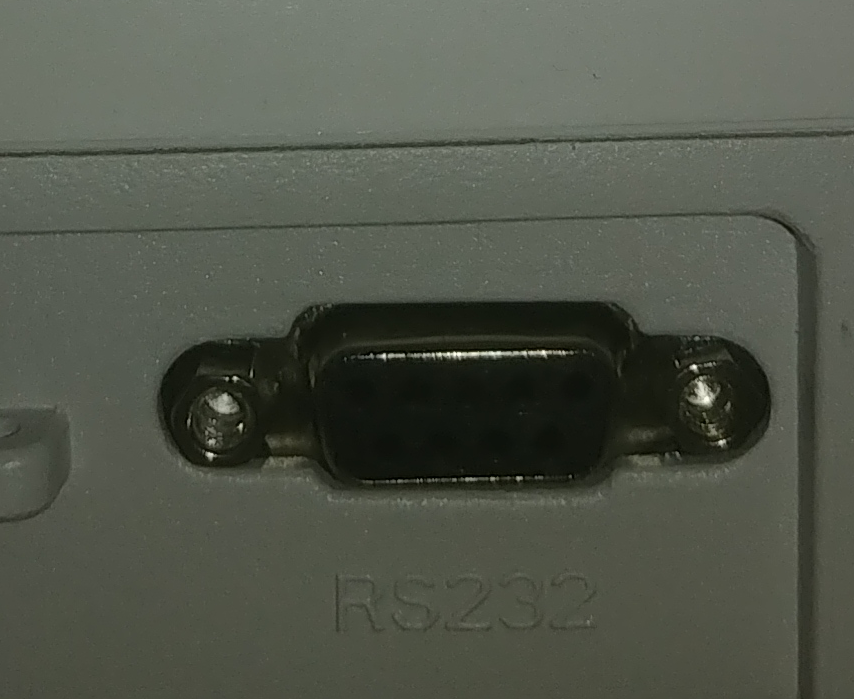 |
Locate the communication port on your scale. This will typically be either a USB Type B (Left) or an RS-232 (Right). A cable to interface with each of these ports is included with the OG Harvest System. Select the appropriate cable and connect it from the scale to the touchscreen.
For more details, please see this article: Currently Supported Scales
Using the devices
RFiD Scanner
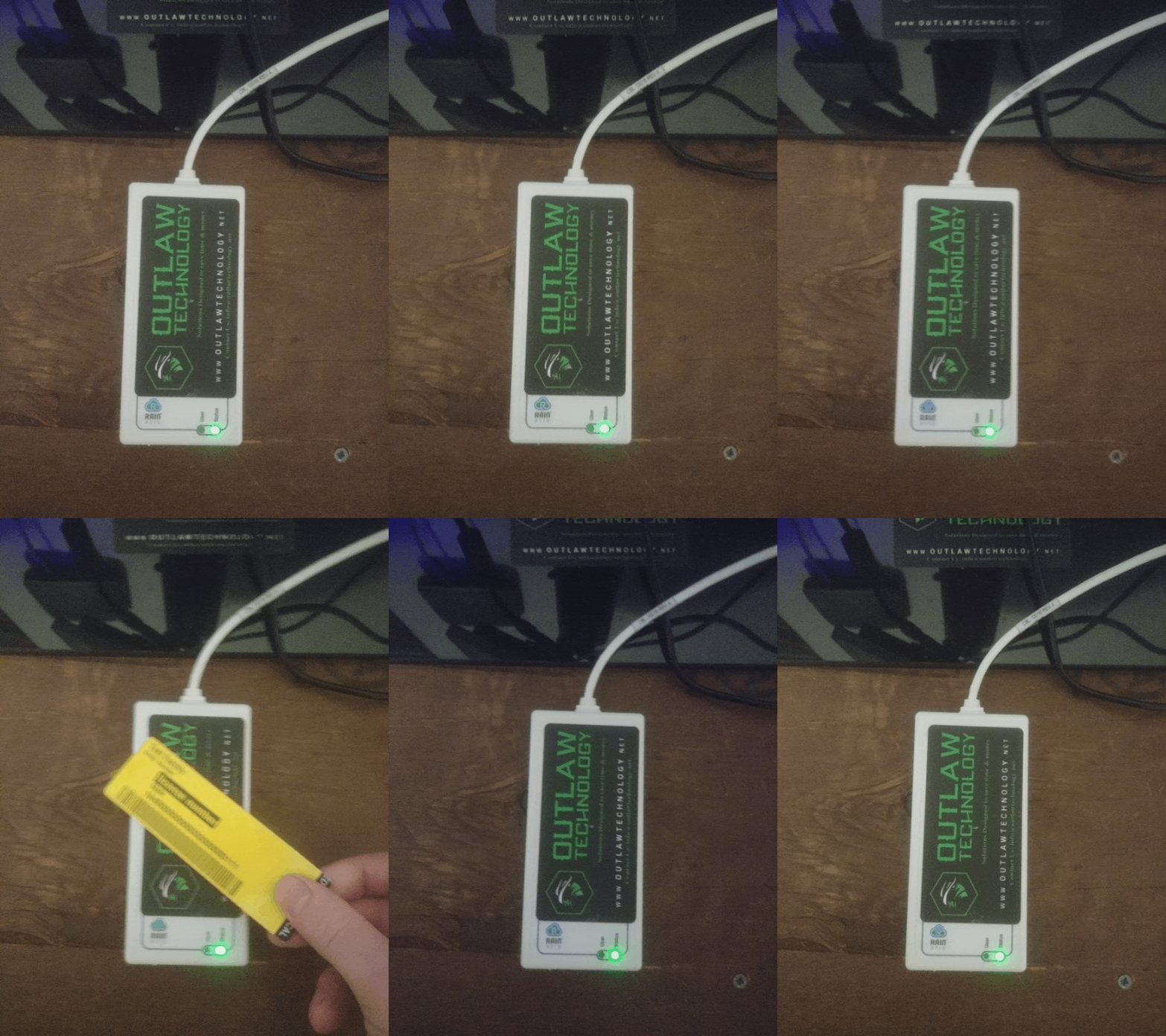 |
The RFID scanner will read the tag id |
Barcode Scanner
Ensure the device is well charged. A full charge should last for several hours of continuous use. Press the center button once to wake the device from its sleep mode. It will 'long-beep' and vibrate indicating it has powered on, and, shortly after, it will 'short-beep' and vibrate indicating it is ready to use. Once in its ready state, press and hold the center button to start a scan. Align the red laser line with the plant tag barcode. Once the tag is successfully scanned, the red laser light turns off and the unit beeps and vibrates. Release the button and you are ready to scan the next tag in the same manner.
Comments
0 comments
Please sign in to leave a comment.